In this article
- Key takeaways
- Why GA4 Is Often Broken for Indian eCommerce Sites
- Setup Prerequisites
- DPDP-Aware Consent Mode V2
- Ecommerce Events: The Core Events to Track
- Platform-Specific Implementation
- UTM Integration With GA4
- GA4 Reports Worth Bookmarking
- Looker Studio Dashboard Template
- Server-Side GTM: When to Invest
- Common GA4 Setup Mistakes
- Debugging: GA4 DebugView + Tag Assistant
- The Bottom Line
- Frequently Asked Questions
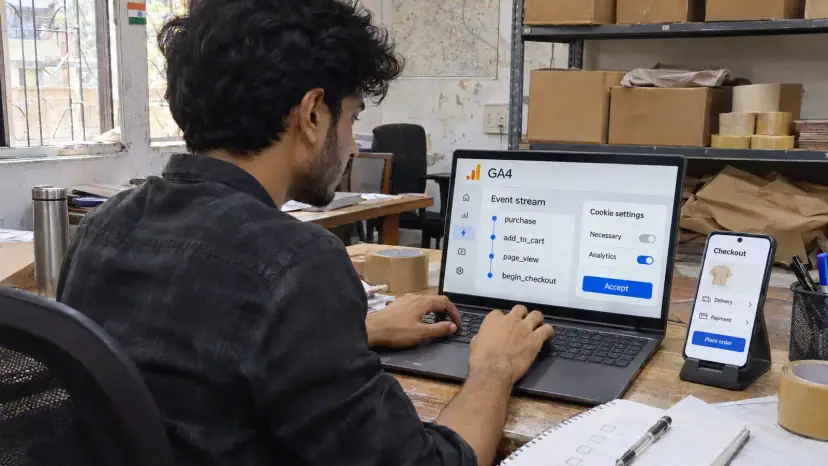
If you run an Indian eCommerce business and your GA4 reports look like noise - missing transactions, duplicate purchases, ₹ amounts that don't match your backend, "(not set)" appearing everywhere, you likely have GA4 setup problems. The good news: the most common issues are also the most fixable. A recurring pattern in GA4 setups for Indian D2C and eCommerce brands: many are missing critical configuration that costs them attribution accuracy and reporting reliability.
This is a practical 2026 guide to GA4 setup for Indian eCommerce. It covers the configuration sequence from GTM container to GA4 ecommerce events to Consent Mode V2 (DPDP-aware), platform-specific implementation for Shopify and WooCommerce with copy-paste code, the core ecommerce events you should track, a Looker Studio dashboard outline, and the debugging workflow for when things go wrong.
Why GA4 Is Often Broken for Indian eCommerce Sites
The four most common issues:
No ecommerce events: basic GA4 captures page views and sessions but misses the actual product interaction data (view_item, add_to_cart, purchase) that powers ecommerce reporting.
No server-side tracking: client-side tracking can miss a meaningful share of conversions due to ad-blockers, browser privacy features, and tracking-prevention policies. Server-side tracking can recover some of this.
No consent mode V2: for privacy-aware setups, consent gating matters. Without it, you can lose tracking entirely on users who don't consent.
Wrong currency configuration: ₹ amounts showing up as raw numbers without proper currency configuration in reports.
Fixing these four typically improves your GA4 data quality substantially.

Setup Prerequisites
Before any code, get these in place:
Google Tag Manager (GTM) container on the site: for event management
GA4 property with INR as base currency
Consent management platform: for DPDP-aware consent gating
Server-side GTM environment (Cloud Run on GCP, or alternative): for higher-quality data
Google Search Console + GA4 linkage: for organic traffic enrichment
DPDP-Aware Consent Mode V2
As a general principle, you should collect user consent before storing non-essential cookies for analytics or marketing. Consent Mode V2 lets you collect anonymous aggregate signals when consent is denied, so you maintain some visibility without storing identifiable data.
Note: this guidance is general. India's Digital Personal Data Protection (DPDP) Act, 2023 and its Rules govern how personal data may be processed (their notice and consent duties apply from 13 May 2027). Verify the specific obligations that apply to your business, including the precise consent and notice requirements, against the DPDP Act 2023 and its Rules, and seek qualified legal advice for your situation.
Implementation sequence:
Install a CMP (consent management platform)
Configure the CMP to fire google_consent_mode signals
Update GA4 to operate in consent-aware mode
Verify in GA4 DebugView that signals fire correctly
Sample consent mode initialisation (before GTM loads):
<script>
window.dataLayer = window.dataLayer || [];
function gtag(){dataLayer.push(arguments);}

// Default state: denied (before consent)
gtag('consent', 'default', {
  'ad_storage': 'denied',
  'analytics_storage': 'denied',
  'ad_user_data': 'denied',
  'ad_personalization': 'denied',
  'wait_for_update': 500
});
</script>
When the user accepts consent, fire:
gtag('consent', 'update', {
  'ad_storage': 'granted',
  'analytics_storage': 'granted',
  'ad_user_data': 'granted',
  'ad_personalization': 'granted'
});
Ecommerce Events: The Core Events to Track
GA4 ecommerce reporting depends on these specific event names. Custom names break the standard reports.
view_item: when user views product detail page
view_item_list: when user views category/listing page
select_item: when user clicks a product in a list
add_to_cart: when product added to cart
remove_from_cart: when product removed from cart
view_cart: when cart page viewed
begin_checkout: when user enters checkout flow
add_shipping_info: when user enters shipping address
add_payment_info: when user enters payment details
purchase: when order is completed (the most important)
Each event has required parameters. The purchase event template:
gtag('event', 'purchase', {
  'transaction_id': '12345',
  'value': 2499.00,
  'currency': 'INR',
  'tax': 374.85,
  'shipping': 0.00,
  'items': [
    {
      'item_id': 'SKU123',
      'item_name': 'Product Name',
      'item_brand': 'Your Brand',
      'item_category': 'Skincare',
      'price': 2499.00,
      'quantity': 1
    }
  ]
});
Platform-Specific Implementation
Shopify (theme.liquid + dataLayer)
For Shopify, the easiest path is the Google & YouTube channel app + manual dataLayer pushes for events the channel doesn't cover.
Don't add purchase code to theme.liquid: it never runs on Shopify's checkout or Thank-you pages, and the old Additional-scripts box stopped working when Shopify upgraded every store's Thank-you and Order-status pages (the deadline was 26 August 2026). Let the Google & YouTube app send purchase, or add GTM as a custom pixel (Settings → Customer events) that subscribes to checkout_completed. A second purchase tag double-counts sales.
{% comment %} Legacy snippet removed: code in theme.liquid or the old Additional scripts box does not run on Shopify's upgraded Thank-you pages. Use the Google & YouTube app, or a GTM custom pixel subscribed to checkout_completed. {% endcomment %}The Google & YouTube app also sends view_item, add_to_cart and begin_checkout, so add custom pushes only for events it does not cover.
WooCommerce (Plugin or Custom)
For WooCommerce, install a quality GA4 plugin. A common choice: the GTM4WP plugin (free), or one of the WooCommerce GA4 integrations.
GTM4WP handles most events automatically. For custom needs, use hooks:
add_action( 'woocommerce_thankyou', function( $order_id ) {
    $order = wc_get_order( $order_id );
    $items = [];
    foreach ( $order->get_items() as $item ) {
        $product = $item->get_product();
        $items[] = [
            'item_id'   => $product->get_sku(),
            'item_name' => $product->get_name(),
            'price'     => $product->get_price(),
            'quantity'  => $item->get_quantity(),
        ];
    }

    $data = [
        'event'       => 'purchase',
        'ecommerce'   => [
            'transaction_id' => $order_id,
            'value'          => $order->get_total(),
            'currency'       => 'INR',
            'tax'            => $order->get_total_tax(),
            'shipping'       => $order->get_shipping_total(),
            'items'          => $items,
        ],
    ];

    echo '<script>window.dataLayer = window.dataLayer || [];';
    echo 'dataLayer.push(' . json_encode( $data ) . ');</script>';
});
Custom Build (Next.js / React)
For React, use a hook-based pattern. Example for purchase tracking:
function usePurchaseEvent(order) {
  useEffect(() => {
    if (window.gtag) {
      window.gtag('event', 'purchase', {
        transaction_id: order.id,
        value: order.total,
        currency: 'INR',
        items: order.items.map(item => ({
          item_id: item.sku,
          item_name: item.name,
          price: item.price,
          quantity: item.qty
        }))
      });
    }
  }, [order]);
}
UTM Integration With GA4
Your UTM tagging discipline feeds GA4 source/medium reports. Ensure your custom channel groups in GA4 align with your UTM convention.
Tip: GA4's default "Channel Grouping" may not capture your custom UTM values. Create custom Channel Groups (Admin → Data Display → Channel Groups) to capture your specific source/medium combinations.
GA4 Reports Worth Bookmarking
Key events by source/medium (Acquisition → Traffic Acquisition): see which channels drive purchases, not just sessions
Ecommerce purchases (Monetization → Ecommerce purchases): item-level views, add-to-carts, purchases and item revenue
Path exploration (Explore → Path exploration): see the paths users take before a purchase
Funnel exploration (Explore → Funnel exploration): set up a checkout funnel to spot drop-offs
Cohort exploration (Explore → Cohort exploration): retention by acquisition cohort
Looker Studio Dashboard Template
Build once, use repeatedly. Suggested dashboard pages:
Page | What It Shows |
|---|---|
Daily Pulse | Yesterday's revenue, sessions, conversion rate vs trailing 14-day average |
Channel Performance | Revenue + AOV + CAC (if cost data integrated) by source/medium |
Product Performance | Top-selling products, viewed-not-purchased, return rate |
Funnel | Checkout funnel drop-off rates |
Customer Cohorts | Repeat purchase rate by month-of-first-purchase |
Campaign-Level | UTM campaign performance with attribution |
The effort to build a dashboard like this varies with your familiarity with Looker Studio and the number of data sources involved.
Server-Side GTM: When to Invest
Server-side GTM moves event tracking from the user's browser to your server. Benefits:
Can recover conversion data lost to ad-blockers and browser privacy features
Better data quality and control
First-party tracking that is more resilient to third-party cookie changes
Potentially faster page loads (less client-side script)
Indicative costs vary by provider and traffic volume: expect a one-time setup effort plus an ongoing monthly hosting cost (for example, Cloud Run). Treat any figures as rough approximations and get a current quote for your situation. Server-side GTM tends to make most sense for higher-volume stores where the data-quality gains justify the added complexity and cost.
Common GA4 Setup Mistakes
Duplicate purchase events: the same purchase fires twice (once from theme, once from a GA4 plugin). Audit for this.
Currency not formatted as a number: pass numeric values, not "₹2499" strings.
Missing transaction_id: required for de-duplication. Use a unique order ID.
Cross-domain not configured: users moving between two different domains you own (for example, a store and a separate checkout or booking domain) are treated as new visitors; subdomains of one domain are measured together by default.
Test data in production property: use a separate GA4 property for staging/test, not the same as production.
Wrong timezone: set to Asia/Kolkata.
Consent gating broken: events fire before consent is gathered.
Debugging: GA4 DebugView + Tag Assistant
A standard debugging workflow:
Install the GA4 Tag Assistant browser extension: real-time event inspection
Open GA4 DebugView (Admin → DebugView)
Enable debug mode: use GTM Preview / Tag Assistant, or set
debug_mode: trueon your Google tagWalk through the user journey: view product, add to cart, checkout, purchase
Verify each event fires with correct parameters
Check transaction_id uniqueness across multiple test orders
Common debug findings: missing item_id, wrong currency, double-firing events, and parameter typos.
The Bottom Line
GA4 done right is among the most valuable analytics tools available to Indian eCommerce: accurate attribution, cohort analysis, and funnel insights. GA4 done wrong is misleading noise that can drive bad decisions. The configuration sequence in this guide is designed to move you from "broken" to "production-grade" with focused work.
For most Indian eCommerce stores, the highest-leverage starting point is installing consent mode V2 and GA4 ecommerce events correctly; together they tend to deliver the biggest improvement in data quality.
For UTM-tagged URL building, use our UTM builder.
Frequently Asked Questions
Do I need GA4 if my Shopify admin shows me sales data?
Generally yes. Shopify shows you order data; GA4 shows you attribution, journey, and cohort data. They serve different purposes, and many stores use both.
Will GA4 work with DPDP compliance?
GA4 can be configured with consent mode V2 so that analytics behavior respects user consent. Consent mode is one part of a compliant setup, not the whole of it. Verify your specific obligations against the DPDP Act 2023 and its Rules, and consult a qualified legal advisor.
How much does GA4 cost?
GA4's standard tier is free and is sufficient for most Indian eCommerce volumes. GA4 360 (paid) is an enterprise option that generally makes sense only for very high-volume or large organizations.
Should I migrate from Universal Analytics to GA4 if I still use UA?
Universal Analytics is fully shut down: standard properties stopped processing data in July 2023, and all UA properties and their data became inaccessible from July 2024. GA4 is the only option.
Why don't my GA4 sales match my Shopify orders?
Some discrepancy is normal. It commonly comes from ad-blockers, browser privacy features, events that fired but failed to send, or duplicate events. Investigate each potential cause rather than assuming a single source.
How long does GA4 setup take?
It depends heavily on scope and your platform. A basic property and tagging setup is relatively quick; a full ecommerce-events + Consent Mode + server-side implementation is a larger project. Plan according to the events and platforms you need to cover.
Want help with this?
Talk to our team about technology services.
Read next

How We Rebuilt Brainguru.in: Two WordPress Sites Into One Next.js Application
Two WordPress sites became one Next.js app. See why the blog left its subdomain, how URLs were kept and what we would change.
Read article
10 Mega IT Trends of 2025 That Redefined the Future of Technology
Looks back at 2025 trends including custom AI models, AI-driven phishing, AI-first cloud and the first quantum pilot projects.
Read article
Building a Website for Your Small Business: A Practical Guide
Free business.site pages ended in 2024. Secure your own domain, connect your Business Profile and track enquiries.
Read article
Comments
Be the first to share your thoughts on this article.