In this article
- Why keyboard shortcuts matter for business productivity
- Essential Windows shortcuts everyone should know
- Universal shortcuts that work across most apps
- Mouse-first versus keyboard-first: how the time adds up
- Building productive habits across a team
- From individual productivity to digital efficiency
- Related Services
- Frequently Asked Questions
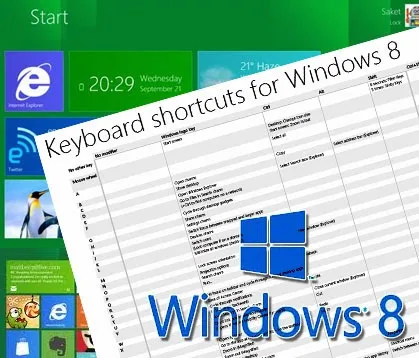
Keyboard shortcuts are one of the simplest, highest-return productivity upgrades any business team can adopt, and learning to drive your operating system without constantly reaching for the mouse pays back every single working day. This guide modernizes an older Brainguru post about getting around Windows 8 into a durable, practical reference for today's Windows 10 and Windows 11 users, covering the shortcuts that genuinely speed up everyday work, why navigation efficiency matters for productivity, and how a faster, well-configured workstation fits into a broader digital-operations strategy.
Editor's note: This article was first published in January 2014 as a Windows 8 walkthrough. Windows 8 has since reached end of support, SkyDrive was renamed OneDrive, and the Charms bar was retired. We have rewritten it as an evergreen guide to Windows keyboard shortcuts and workplace productivity that applies to current Windows versions.
A keyboard shortcut is a single key or combination of keys that triggers a software action instantly, letting you navigate, switch, search, and manage windows without moving your hand to the mouse. Across a team, those saved seconds compound into hours, and that recovered time is exactly the kind of operational efficiency that supports faster delivery and better customer response.
Why keyboard shortcuts matter for business productivity
Most people interact with their computer hundreds of times an hour: switching between a browser, an email client, a spreadsheet, and a chat app. Every one of those switches done with the mouse costs a few seconds and a small mental interruption. Shortcuts remove that friction, keeping your attention on the task rather than on hunting for the right button or window.
For teams, the benefit is collective. When everyone navigates efficiently, meetings start faster, documents get found quicker, and repetitive admin work shrinks. It is the same philosophy that underpins good digital operations: remove friction, automate the routine, and let people spend time on work that actually needs a human.
Essential Windows shortcuts everyone should know
The shortcuts below work on modern Windows (Windows 10 and Windows 11). They cover the actions you perform most often, and they are the best place to start if you are building the habit.
- Windows key: open or close the Start menu.
- Windows + D: show the desktop, then show your windows again.
- Windows + M: minimize every open window at once.
- Windows + E: open File Explorer to browse files and folders.
- Windows + L: lock your screen instantly when you step away (a simple security habit).
- Windows + Tab: open Task View to see all open windows and virtual desktops.
- Alt + Tab: quickly switch between open applications.
- Windows + Shift + S: capture part of the screen with the Snipping Tool (the modern replacement for the old print-screen-to-Pictures behavior).
Window management and multitasking
Modern Windows makes arranging windows side by side fast, which is invaluable when you are comparing documents or referencing one app while typing into another.
- Windows + Left / Right arrow: snap the active window to half the screen.
- Windows + Up / Down arrow: maximize or minimize the active window.
- Windows + Ctrl + D: create a new virtual desktop to separate tasks or projects.
- Windows + Ctrl + Left / Right arrow: move between virtual desktops.
Search, settings, and quick access
- Windows + S: open search to find apps, files, and settings by typing.
- Windows + I: open the Settings app directly.
- Windows + X: open the power-user menu for quick access to Device Manager, Terminal, Disk Management, and more.
- Windows + V: open clipboard history to paste from items you copied earlier.
- Windows + . (period): open the emoji and symbol picker.
Universal shortcuts that work across most apps
Beyond the operating system, a small set of editing shortcuts works almost everywhere: in documents, browsers, email, and most business software. Mastering these once benefits you in every program.
- Ctrl + C / Ctrl + X / Ctrl + V: copy, cut, and paste.
- Ctrl + Z / Ctrl + Y: undo and redo.
- Ctrl + A: select all.
- Ctrl + F: find text on the page or in the document.
- Ctrl + S: save your work (build this into muscle memory).
- Ctrl + T / Ctrl + W: open a new browser tab and close the current one.
Mouse-first versus keyboard-first: how the time adds up
The difference between the two working styles is small per action but large over a week. The table below illustrates how common tasks compare.
| Task | Mouse-first approach | Keyboard-first approach |
|---|---|---|
| Switch between two apps | Locate and click the taskbar icon | Alt + Tab |
| Lock the computer | Start menu → profile → Lock | Windows + L |
| Find a file | Open Explorer, browse folders | Windows + S, then type |
| Snip part of the screen | Open the tool, drag, save manually | Windows + Shift + S |
| Arrange two windows side by side | Drag and resize each manually | Windows + Left, Windows + Right |
None of these tasks is hard with a mouse, but the keyboard route is consistently quicker and keeps you in flow. Multiply that across a full workday and an entire team, and the productivity gain is real.
Building productive habits across a team
Adopting shortcuts is a behavior-change exercise, not a one-time announcement. A few practical steps help them stick:
- Pick five shortcuts to start with (the ones you would use dozens of times a day) and ignore the rest until those are automatic.
- Print a short reference card or pin one to your team's wiki so people can glance at it.
- Encourage the security-friendly habit of Windows + L whenever someone leaves their desk.
- Review again in a few weeks and add the next handful.
The same incremental mindset applies to bigger efficiency wins. A modern, well-built website, streamlined internal tools, and smart automation all reduce daily friction, which is why a strong web development foundation and a clear digital strategy matter as much as good desktop habits.
From individual productivity to digital efficiency
Fast navigation is one layer of a productive business. The bigger gains come from the systems your team works in every day: responsive, well-designed websites; applications that fit your workflow; and marketing operations that run without constant manual effort. If keyboard shortcuts are about removing small frictions, those systems are about removing large ones.
At Brainguru Technologies, we help businesses in Delhi NCR, Noida, and across India build that efficiency end to end, from responsive web design and web application development to AI-powered marketing solutions and SEO services that bring the right audience to your site. A faster workstation is a great start; a faster, smarter digital operation is the goal.
Related Services
- Technology Services & AI Solutions
- Corporate Training Services Upskill & Grow
- Software Development Services in India
- UI/UX Design Services Improving User Experience
- Usability Testing Services to Improve UX
- Custom Web Application Development in India
Frequently Asked Questions
Do these Windows shortcuts work on Windows 10 and Windows 11?
Yes. The shortcuts in this guide work on both Windows 10 and Windows 11, although Windows 10 reached end of support on 14 October 2025. A small number of older Windows 8 features, such as the Charms bar, have been removed, so this guide focuses on shortcuts that still work today.
What is the fastest way to switch between open applications?
Press Alt + Tab to cycle through open applications, or Windows + Tab to open Task View, which shows every open window and your virtual desktops. Both are far quicker than clicking taskbar icons.
How do I take a screenshot of part of the screen in Windows?
Press Windows + Shift + S to launch the snipping overlay, then drag to select the area you want. The capture is copied to your clipboard so you can paste it directly into a document, email, or chat.
How can keyboard shortcuts improve business productivity?
Shortcuts remove the small delays of mouse-based navigation and help people stay focused on their work. Across a team, those saved seconds add up over a day, which is why navigation efficiency is a simple, low-cost productivity win.
What are the most important shortcuts to learn first?
Start with the ones you use constantly: Alt + Tab to switch apps, Ctrl + C and Ctrl + V to copy and paste, Ctrl + S to save, Windows + S to search, and Windows + L to lock your screen. Master those before adding more.
Ready to make your whole digital operation faster, not just your keyboard? Whether you need a high-performing website, a custom business application, or a marketing engine that runs on autopilot, Brainguru Technologies can help. Get in touch with our team or call +91-8010010000 to discuss your goals.
Related Articles

Visual Search: How It Works and How to Optimize for It
Visual search lets people search using a photo instead of words. Learn how it works and how to optimize your images so Indian businesses get discovered.
Read More
Email Marketing for Business: Why Email Still Wins
Email marketing remains one of the most cost-efficient, owned channels in business. Learn how email began in 1971 and how to build a programme that converts.
Read More
Planning an OS Upgrade: Lessons From the Windows 10 Launch
Lessons from the 2015 Windows 10 launch for Indian businesses planning an OS migration: why upgrades matter, how to plan a smooth rollout, choose editions and stay secure.
Read More
Comments
Be the first to share your thoughts on this article.